Eduseek.AI
Timeline
Nov 2025 - Feb 2026
Role
UX Designer
Tools
Figma, Magic Patterns
Deliverables
Calendar Navigation, Key Insights Feature, Mobile Adaptation
8+ to 4
clicks to reach a past session
14 to 17
schools, before and after the redesign
3
features designed: calendar, Key Insights, mobile
16
weeks working directly with the CEO
Outcome
From an 8-click bottleneck to a 4-click habit
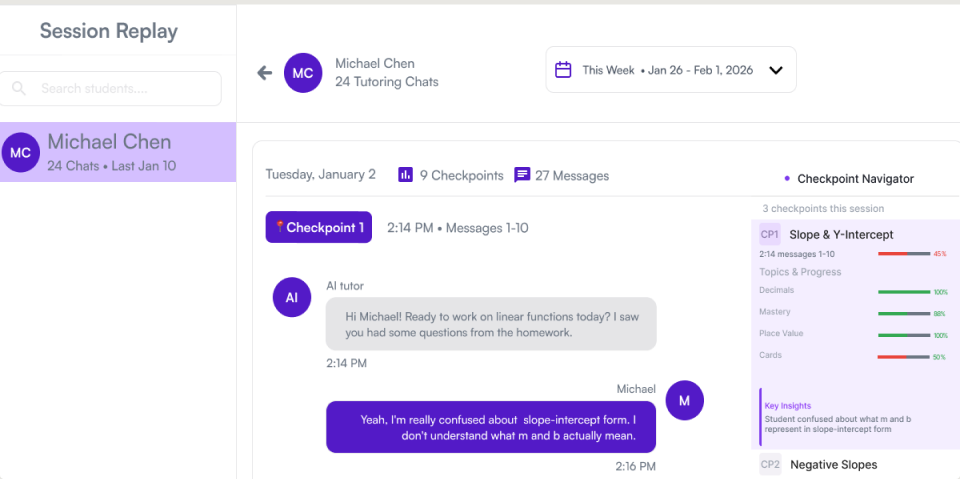
I was tasked with giving Eduseek.AI's session replay a refresh. Over 16 weeks working directly with the CEO, it grew into a full usability pass. I fixed the problems teachers hit and designed new solutions for the ones I found along the way.
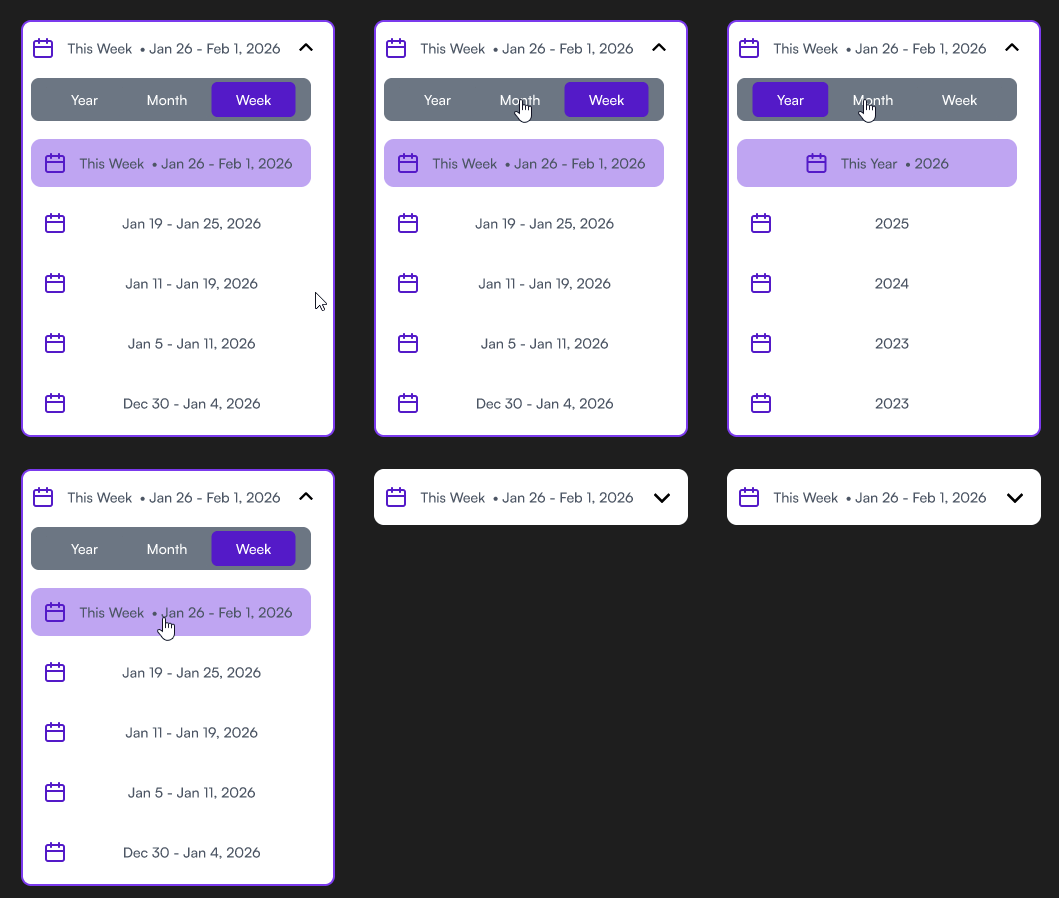
- Calendar navigation: The original only let teachers step through one button or arrow at a time, so reaching a past session took 8+ clicks. I designed a Year / Month / Week picker that holds its position and matches the style of the analytics window. Open it, pick a year, a month, then a week, and that week's chats load. That's 4 clicks. It also gives schools that have used Eduseek for a long time a way to get back through months and years.
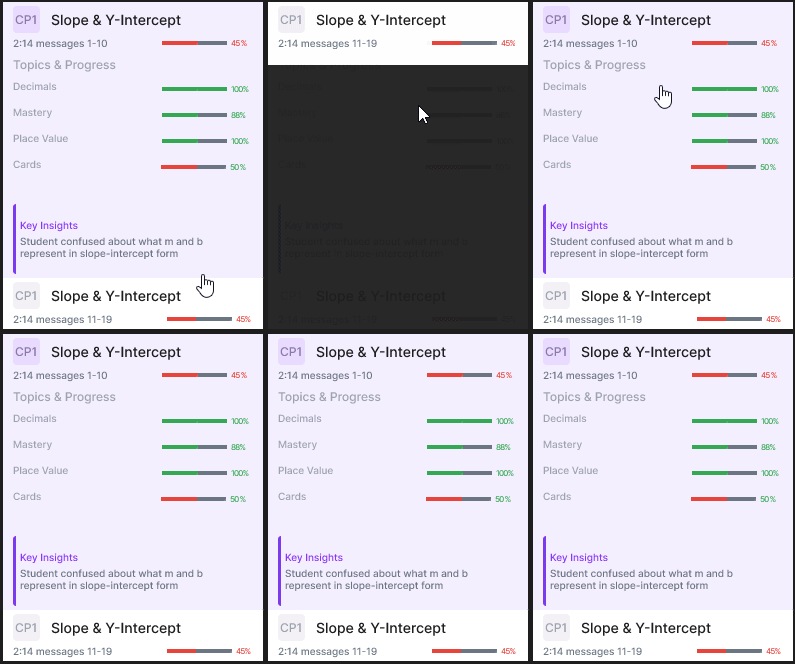
- Key Insights: Teachers could see scores but not why a student was struggling. I suggested and designed Key Insights, which flags the specific issue inside each conversation so teachers know what to work on.
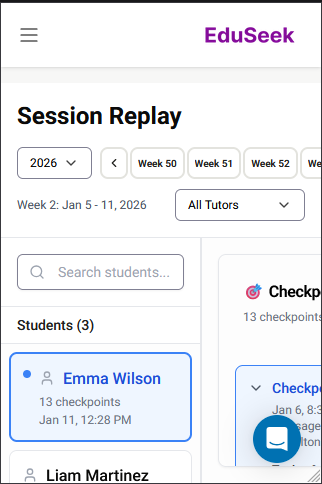
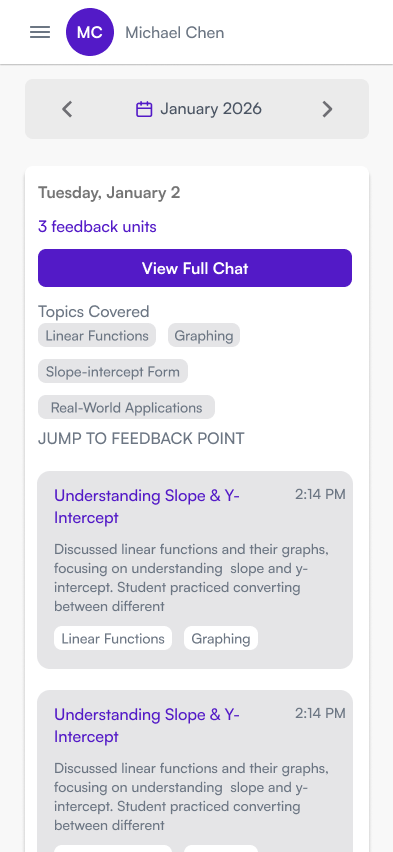
- Mobile: The original page collapsed in on itself on mobile. I redesigned the components to work at mobile sizes and match the new desktop design.
I designed all three and delivered them to the CEO. The redesign also went live when Eduseek went B2C.
Solutions at a glance
The story behind the score
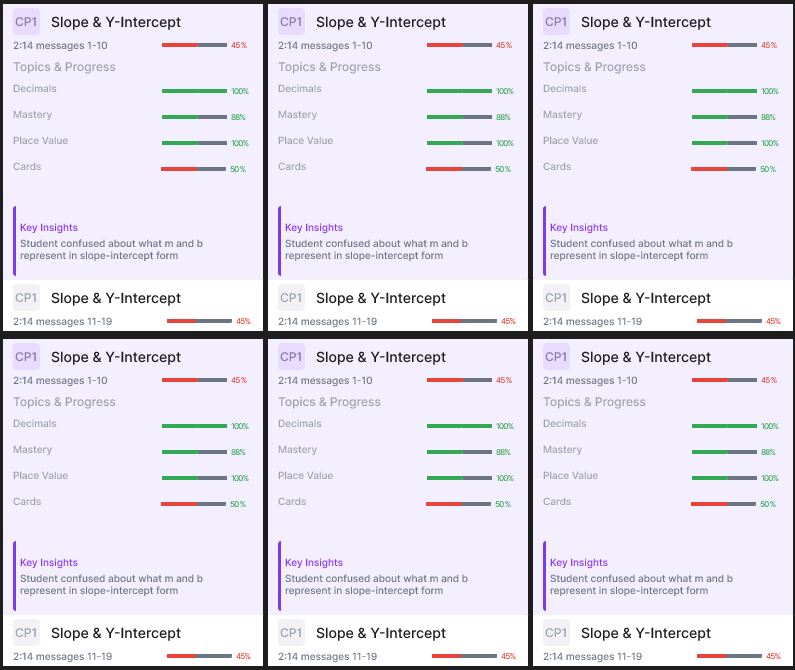
Key Insights flags the exact issue in each conversation, so teachers know where a student needs help.
Access beyond the classroom
The mobile components were redesigned to work at mobile screen sizes and match the desktop redesign.
Context
The platform
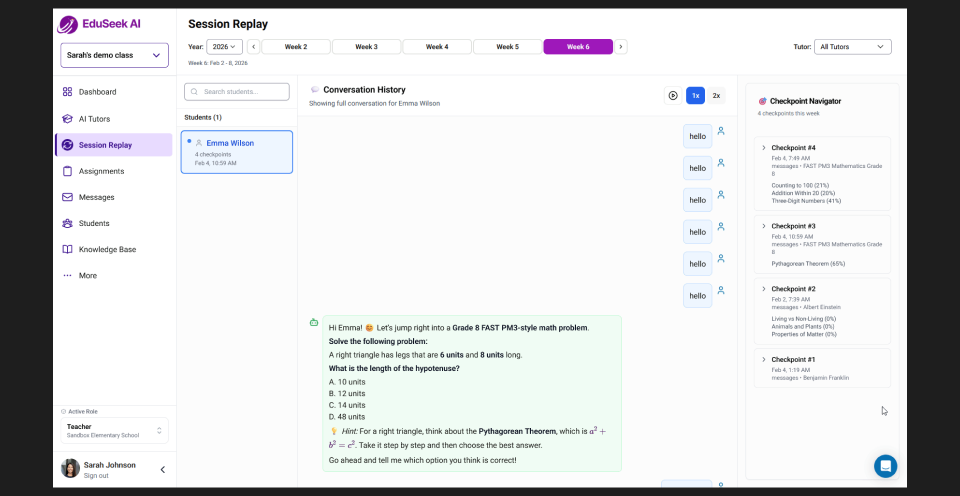
Eduseek.AI is an EdTech startup building AI tutoring tools. Its session replay system lets teachers review AI tutoring conversations and student interactions. When I joined, 14 schools were testing the original build. I started as the sole designer on the redesign, working directly with the CEO. We synced daily, and I sent him each update and finished component as I completed it. As the scope grew, I worked with another designer on the product. He had built the analytics window, and I matched his design style in session replay so the two felt consistent.
Problem
The data existed, but teachers couldn't use it
Teachers were spending a lot of time reviewing tutoring sessions, and the interface fought them the whole way. Three problems stood out:
- Too many clicks: The original calendar only let teachers step through one button or arrow at a time.
- Scores with no context: A mastery score didn't tell teachers where a student actually struggled.
- Broken on mobile: The page collapsed in on itself on mobile. I cover that fix below.
8+
clicks to reach a past session with the original calendar

Teachers were clicking blind
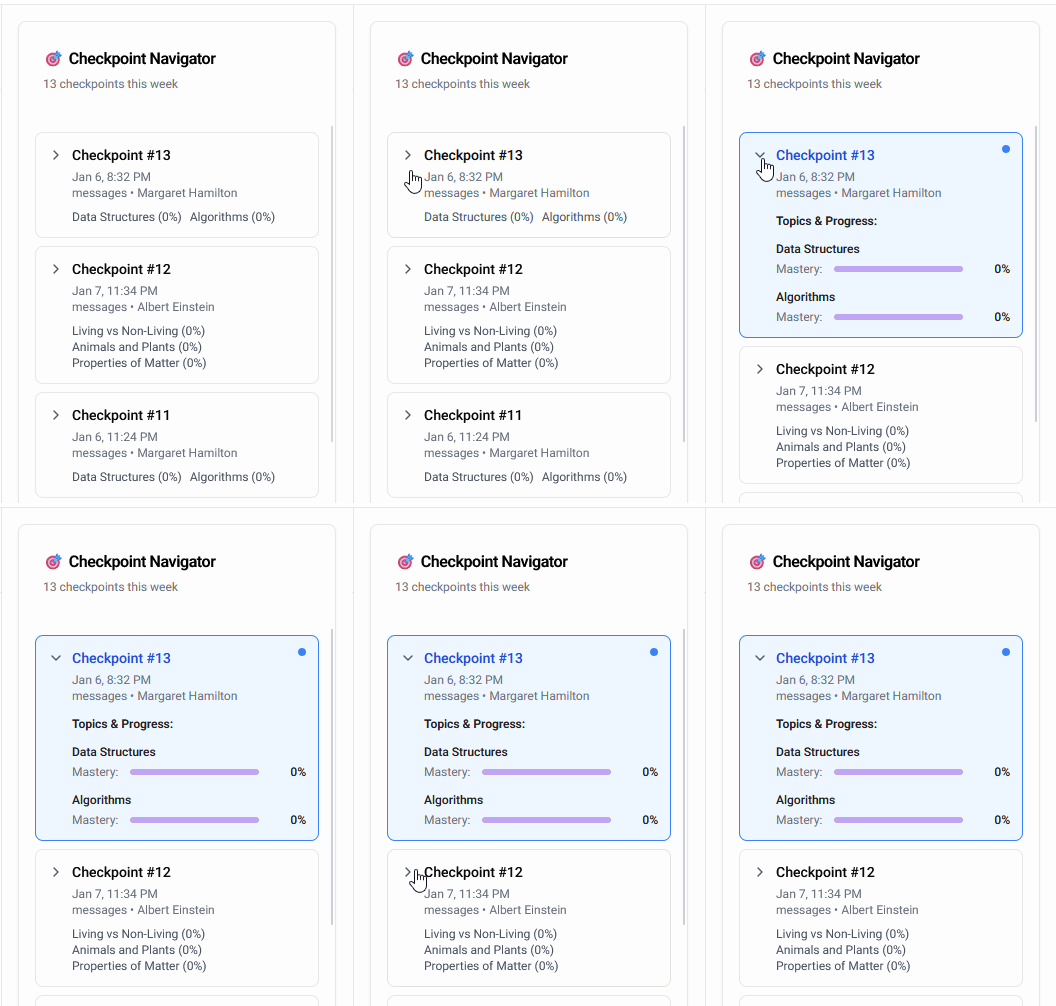
Teachers were spending 8+ clicks to reach past sessions, and the existing system would jump straight to the end of the week on click, making it nearly impossible to find a specific conversation.
Design Decisions
From 8+ clicks to 4, with navigation that stays put
The original calendar made teachers step through one button or arrow at a time. I rebuilt it as a Year / Month / Week picker. Calendar and fitness apps tend to read top to bottom, so I used the same order. The student you're looking at sits at the top, and all of their chat sessions sit below.
4
clicks: open the picker, then pick a year, a month and a week
The original ask was to restyle the existing single-scroll week list. The CEO and I walked through the design together on a call, and it was clear restyling wouldn't fix it. Teachers would still need 8+ clicks, and the jump-to-end-of-week behavior meant one wrong click cost a full re-navigation.
Interactive prototype
Process: I borrowed familiar patterns from Apple Calendar, Canvas, and workout apps, then adapted existing JavaScript calendar widgets to fit Eduseek. I iterated on states in Magic Patterns before finalizing in Figma.
Design Decisions
Surfacing the story behind the score
Mastery scores told teachers how a student did, but not why. I designed Key Insights to flag the specific issue inside each conversation. Generic bullets about learning objectives wouldn't tell a teacher what to work on, or help the student focus on one thing to improve. Color-coded progress meters sit next to it, so teachers can read comprehension at a glance and act on it, not just observe it.
Example insight
Student confused about what m and b represent in slope-intercept form
Design Decisions
Extending access beyond the classroom
Teachers review student progress on the go, not just at their desks. On mobile, the original page collapsed in on itself and zoomed in, so session replay was nearly unusable. I redesigned the components to work at mobile screen sizes and match the new desktop design.
Reflection
What I learned
- Designing for problems nobody had defined. Some of what I solved wasn't in the original brief. The old calendar had no good way to move across months and years, which would have hurt any school using Eduseek for a long time, so I designed for it. I suggested Key Insights myself and was later handed the mobile redesign. I'm a lot more comfortable now working in the unknown.
- Designing to match someone else's work. Another designer had built an analytics window, so I copied his design style for session replay. Keeping the components consistent made the product feel like one system and made it easier to build.
- Trusting my judgment. To cut the clicks, I researched on my own how other tools handle dates and planning, and chose patterns teachers would already know. The CEO was building it in JavaScript, so I adapted existing JavaScript calendar widgets to fit Eduseek. We synced daily and I sent him every finished component, so I could stay open to feedback while still making the design calls.
- Prototyping before handoff. I tested my designs in Magic Patterns to check they'd work with the existing site, so there was less for engineering to build. At the time, using AI for UX work wasn't common practice on the team yet.
Try it
INTERACTIVE PROTOTYPE
Explore the session replay prototype I built in Magic Patterns. I used it to test the calendar navigation and Key Insights against the existing site, so there was less for engineering to build.